
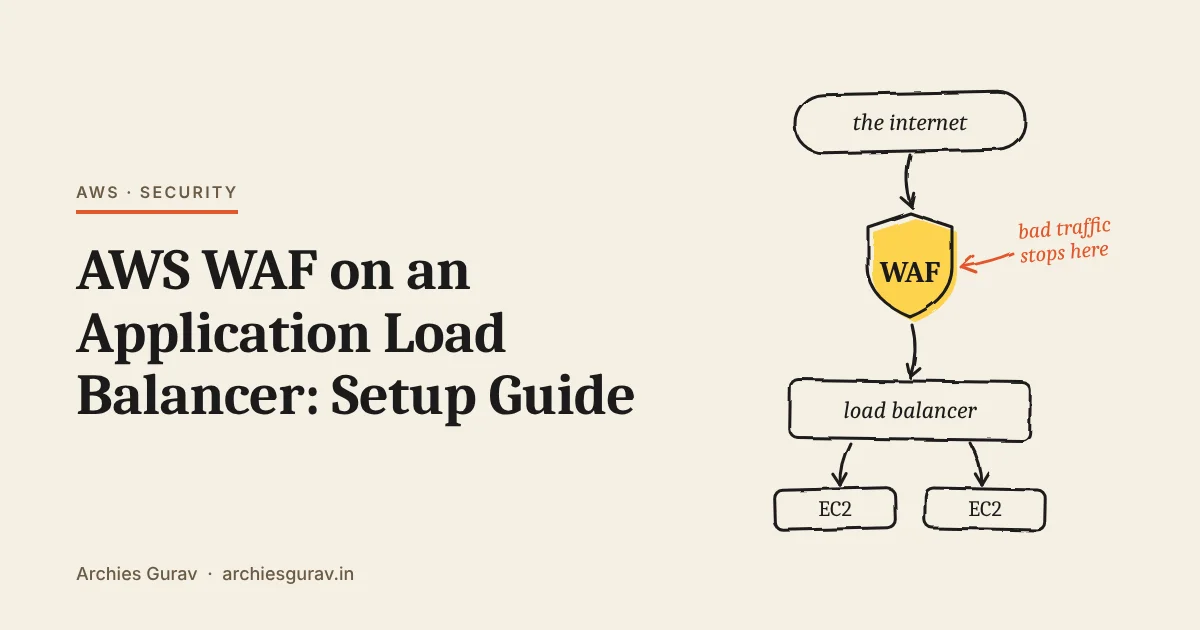
You can put AWS WAF on an Application Load Balancer (ALB) to protect it, even without CloudFront in front. WAF checks every request before it reaches your app and blocks the bad ones.
This guide explains what WAF does, the rules to start with, how to turn it on without blocking real users, and the best practices to follow.
Create a web ACL in the same region as your ALB, add three AWS managed rule groups and a rate limit, and attach it to the ALB. Run it in count mode for a week, fix anything that would block real users, then switch it to block.
What AWS WAF does on a load balancer
AWS WAF is a web application firewall. A normal firewall, like a security group, looks at where traffic comes from and which port it uses. WAF looks inside each web request: the URL, the headers and the body.
For every request, WAF can do one of three things:
- Allow it through to your app.
- Block it, and the visitor gets a
403 Forbiddenerror. - Count it: let it through, but record that a rule matched.
The path of a request looks like this:
- A visitor sends a request to your site.
- WAF checks it against your rules.
- If no rule blocks it, the ALB sends it to your servers.
Your rules live in a web ACL, which is just a list of rules. You attach the web ACL to the ALB, and from then on WAF checks every request to it.
Step 1: Create a web ACL for your ALB
Create the web ACL in the same AWS region as your ALB, and choose Regional resources as the type. A web ACL can’t be attached to a load balancer in another region.
Set the default action to Allow. That means a request is allowed unless a rule blocks it.
Step 2: Add these four rules
AWS keeps ready-made sets of rules called managed rule groups, and updates them when new attacks appear. Three of them, plus a rate limit, cover most of what a public ALB sees:
| Rule | What it stops |
|---|---|
| Amazon IP reputation list | Requests from IP addresses that AWS has seen acting as bots or attackers |
| Known bad inputs | Requests that try known exploits, such as Log4j |
| Core rule set | Common attacks such as cross-site scripting and path traversal |
| Rate limit | Any single IP address that sends too many requests in a short time |
Put them in that order. WAF checks rules from top to bottom, so the cheap IP check runs first.
For the rate limit, start high, such as 1,000 requests per IP address in 5 minutes. You’ll adjust it in step 4.
Step 3: Start in count mode
This is the most important step. Set every rule to count, not block.
In count mode, nothing is blocked and your users notice nothing. WAF simply records which requests each rule would have blocked. That shows you if a rule is going to block real customers before it does.
Turn on logging at the same time, because the logs are where you’ll see those requests. Two settings matter:
- The CloudWatch log group name must start with
aws-waf-logs-. - Hide the
AuthorizationandCookieheaders in the logs, so login tokens aren’t stored.
Step 4: Check what would be blocked
Send a request that the core rule set should catch:
curl -i "https://app.example.com/?q=<script>alert(1)</script>"In count mode you’ll get your normal page back. In CloudWatch Logs Insights, this query shows every request a rule counted:
fields @timestamp, httpRequest.clientIp, httpRequest.uri
| filter @message like /"action":"COUNT"/
| sort @timestamp desc
| limit 50
Let it run for about a week of normal traffic, then look through the results:
- Scanners and junk: good, that’s what WAF is for.
- Real users: a rule needs fixing before you block. Check login forms, file uploads and search boxes first.
- Your busiest real IP addresses: set the rate limit well above them. Offices and mobile networks can put many people behind one IP address.
Step 5: Fix the upload problem
Most ALBs hit the same false positive. The core rule set has a rule called SizeRestrictions_BODY, which blocks any request body larger than 8 KB.
The reason is that WAF on an ALB can only read the first 8 KB of a request body, and that limit can’t be raised. Rather than let through what it can’t read, the rule blocks it. Unfortunately, file uploads and large forms are often bigger than 8 KB.
If your app accepts uploads or large forms, set just that one rule to count. Every other rule in the core rule set keeps protecting you. If your app never accepts large requests, leave it blocking.
Step 6: Switch to block
When the counted requests are only scanners and junk, switch the rules from count to block. Run the same curl request again, and this time you should get 403 Forbidden.
Keep an eye on the logs for the first few days after switching.
AWS WAF best practices for an ALB
- Keep your security groups tight. WAF checks requests, but security groups decide who can connect at all. Allow only ports 80 and 443 to the ALB, and only the ALB to your servers.
- Redirect HTTP to HTTPS on the ALB, so all traffic is encrypted.
- Override one rule, not a whole group. When a rule misfires, set only that rule to count instead of removing the whole group.
- Add a stricter rate limit for logins. A second, lower rate rule on the login path slows down password-guessing without affecting the rest of the site.
- Lock admin pages to known IP addresses. If only your team uses an admin area, block it for everyone else.
- Set an alarm on blocked requests. A CloudWatch alarm on the
BlockedRequestsmetric tells you when an attack starts, or when a rule suddenly blocks real users. - Set a log retention period, such as 30 days, so log storage doesn’t grow forever.
- Manage WAF as code. Rules changed by hand in the console are easy to break and hard to review. Keep them in Terraform or CloudFormation.
What it costs
AWS’s published prices for the setup above:
| Item | Price | For this setup |
|---|---|---|
| Web ACL | $5.00 per month | $5.00 |
| Rules and rule groups | $1.00 each per month | $4.00 |
| Requests | $0.60 per million | $6.00 at 10 million |
That’s about $15 a month for 10 million requests, plus a small amount for log storage. The three managed rule groups here have no extra fee. Some others, like Bot Control, do.
Frequently asked questions
Can I use AWS WAF on an Application Load Balancer without CloudFront?
Yes. Create a regional web ACL in the same region as the ALB and attach it to the load balancer. WAF then checks every request to that ALB.
Why does my app show 403 errors after adding WAF?
A rule is blocking real requests. The WAF log shows which rule in the terminatingRuleId field. On an ALB, the most common cause is SizeRestrictions_BODY blocking uploads over 8 KB.
Can one web ACL protect more than one ALB?
Yes, as long as the load balancers are in the same region. Each ALB can have only one web ACL.
Does AWS WAF replace security groups?
No. Security groups control which traffic can connect. WAF inspects the web requests that get through. Use both.
How much does AWS WAF cost for one ALB?
With the four rules in this guide, about $9 a month plus $0.60 per million requests. At 10 million requests a month, that’s around $15.
Conclusion
AWS WAF on an Application Load Balancer is quick to add. The safe way is the order you do it in: add the rules, run them in count mode, fix what would block real users, then switch to block.
My book Production AWS with Terraform builds these WAF rules in Terraform as part of a full production setup, including the rate limit and an admin area locked to known IP addresses. If you’re also securing the servers behind your load balancer, see how to connect to EC2 without SSH.
Go deeper
Production AWS with Terraform
Build scalable, secure AWS infrastructure from code: the patterns, trade-offs and safety checks that production AWS needs.
See what is inside